

Local ad extensions, now referred to as "assets", enhance your search ads by including key business details like your address, phone number, and map links. These additions improve visibility, increase ad space, and drive engagement. Here’s why they matter:
- 46% of Google searches are local, and 76% of people searching nearby visit a business within 24 hours.
- Adding extensions can boost click-through rates by 10-15% and even improve your ad's position by increasing Ad Rank.
- Types of local ad assets include location, call, sitelink, and promotion extensions, each serving specific goals like driving foot traffic, generating calls, or showcasing offers.
To get started, link your verified Google Business Profile to your Google Ads account. Use at least four extensions to maximize visibility and test performance regularly. Keep business details updated, align extensions with your goals, and monitor metrics like clicks, calls, and conversions to optimize results. Local ad extensions are a cost-effective way to attract more customers and improve ad performance.
Google Maps Ads & Google Ads Location Extensions (COMPLETE GUIDE)
sbb-itb-d8a1e45
Types of Local Ad Extensions
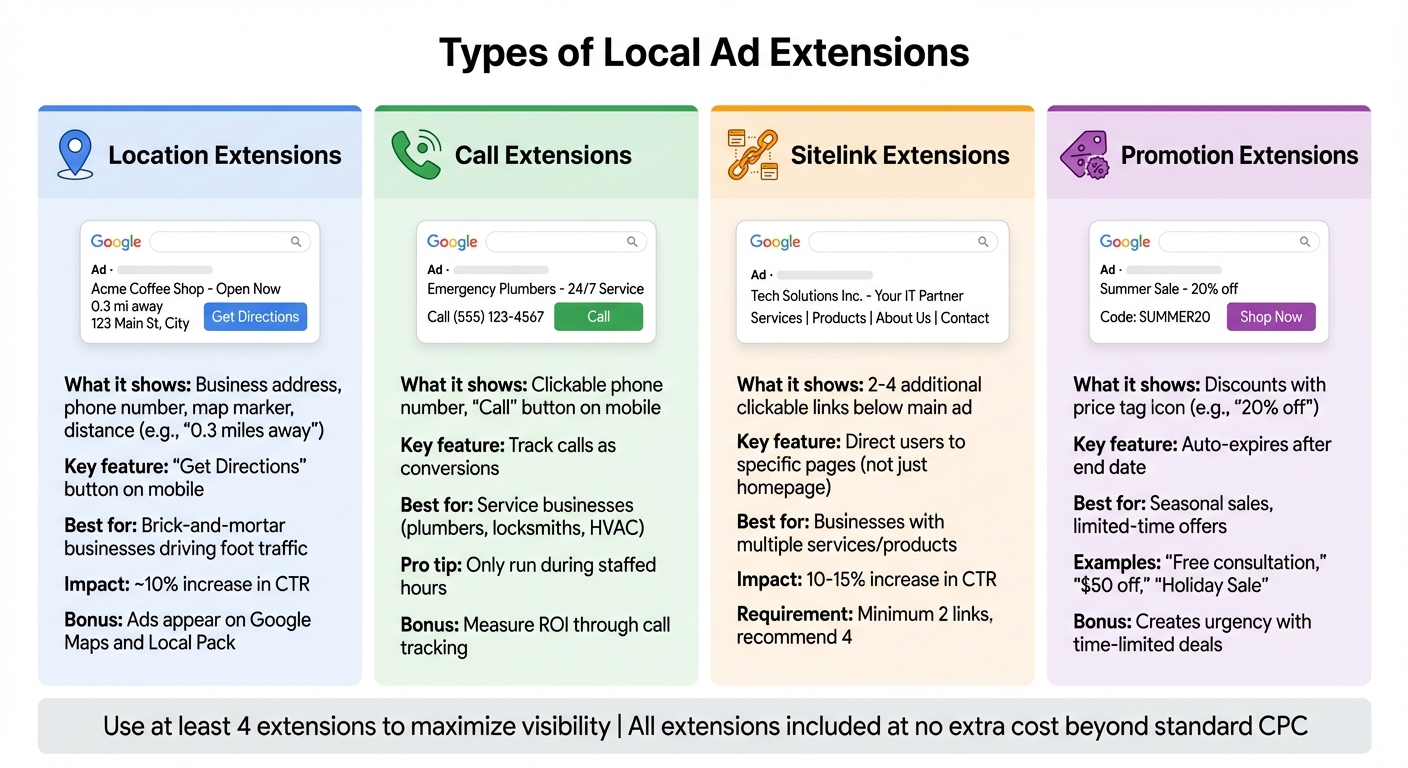
4 Types of Local Ad Extensions: Features and Benefits Comparison
Google Ads offers various local ad assets (previously called extensions) designed to enhance ad visibility and encourage customer engagement. Each type serves a specific role, whether it's driving foot traffic, generating calls, or promoting special offers. Here’s a breakdown of the four main types to help you decide which aligns best with your local advertising goals.
Location Extensions
Location assets display your business address, phone number, and a map marker directly within your ad. For example, your ad might show how close your business is to the searcher, such as "0.3 miles away." On mobile devices, a "Get Directions" button lets users open their navigation app with one tap, making it easy to visit your store.
These assets are dynamic - Google adjusts the information shown based on the searcher’s location and device. They’re perfect for brick-and-mortar businesses and can increase click-through rates by about 10%. When active, your ads may also appear on Google Maps and in the "Local Pack" results.
To make the most of location extensions, keep your business hours, address, and phone number consistent across your Google Business Profile and website. Update details like seasonal hours or temporary closures promptly to avoid confusing or frustrating potential customers.
Next, consider call assets to enable direct customer contact.
Call Extensions
Call assets add a clickable phone number to your ad, appearing as a "Call" button on smartphones. With one tap, users can call your business directly. On desktops, the number is displayed for users to dial manually. These extensions are particularly useful for service-based businesses like plumbers, locksmiths, or HVAC technicians, where immediate contact is often essential.
You can track calls as conversions within Google Ads, allowing you to measure how many leads your campaigns generate. This data is key for evaluating your return on investment and identifying which ads or keywords bring in the most valuable calls.
To avoid wasting clicks, limit call extensions to your business hours. If no one is available to answer, you risk paying for a click that doesn’t lead to a conversion. Most businesses set these extensions to run during staffed hours, such as Monday through Friday, 8:00 AM to 6:00 PM.
Next, let’s look at sitelink assets to guide users to specific pages on your site.
Sitelink Extensions
Sitelink assets add additional clickable links below your main ad, directing users to specific pages on your website rather than just the homepage. For instance, a bakery might include links for "Wedding Cakes", "Catering Menu", "Order Online", and "Reviews." A plumbing business could use sitelinks like "Emergency Services", "Free Estimates", "Service Area", and "Customer Testimonials."
These assets make your ad more prominent by increasing its size on the search results page. To use sitelinks effectively, you’ll need at least two, though Google recommends setting up four to maximize their visibility.
Each sitelink must link to a page on the same domain as your main ad, and the landing pages should match the link text. Clear and specific labels are crucial. Well-crafted sitelinks can boost your click-through rate by 10-15%.
Finally, let’s dive into promotion assets to spotlight deals and create urgency.
Promotion Extensions
Promotion assets are designed to highlight discounts and special offers with a price tag icon next to your ad. Examples include "20% off for first-time customers", "Free consultation through March 31", or "Back to School Sale - $50 off".
These assets allow you to set precise start and end dates for your promotions. Once a deal expires, Google automatically stops showing the asset, ensuring you don’t accidentally advertise outdated offers. The promotion label, such as "Holiday Sale" or "Spring Special", adds context to the discount.
Promotion assets are especially effective during peak shopping seasons like Black Friday, back-to-school events, or local celebrations. Pair them with a clear call-to-action in your ad text, such as "Call now to claim your discount" or "Visit our store this weekend".
Setting Up and Managing Local Ad Extensions
How to Set Up Local Ad Extensions
Before you start adding location assets to your campaigns, you’ll need a verified Google Business Profile. This profile acts as the source for your business details, including your address, phone number, and operating hours. Once your profile is verified, head over to the Assets tab in your Google Ads account and select the Location asset option.
The next step is to link your Google Business Profile with your Google Ads account. Once the accounts are connected, you can decide how to display your locations. You have a few options: sync all locations from your profile, pick specific locations from Google's retail chain index (ideal for businesses selling through major retailers), or create location groups to show particular addresses for certain campaigns. Location groups are especially handy if you want to limit visibility to just a few locations per campaign, keeping your ads aligned with your keyword strategy.
Make sure to enable call reporting and set call asset schedules to match your staffed hours. Add at least two sitelink assets (though Google recommends four) that link directly to pages on your website. Additionally, configure promotion assets with clear start and end dates to ensure expired deals stop appearing automatically. The good news? All of this can be done without any extra costs beyond the standard CPC.
Tips for Managing Extensions
Once your extensions are set up, consistent management is key to maintaining accuracy and performance. Conduct a monthly review of your business details to catch any errors that could confuse potential customers. Remember, updates made in your Google Business Profile can take up to 24 hours to sync with Google Ads, so plan ahead for seasonal changes or holiday closures. If a location is temporarily or permanently closed, mark it in your profile - Google Ads will automatically stop showing the related asset.
For centralized management, use the Location Manager tool in the "Tools" menu. This tool gives you a clear overview of all your store data and settings, making it easier to spot inconsistencies or resolve issues like disapproved assets. If incorrect locations show up in your ads, you can create location groups to filter addresses by region or campaign goals. Alternatively, you can manually remove unwanted addresses by selecting them in the "Assets" menu and clicking "Remove".
To maximize the impact of your extensions, stick to assets that align with your campaign’s main objective. For example, if your goal is to drive website traffic, skip call extensions - they could distract from your primary message and even affect your Quality Score. Focus on matching your extensions to your ad’s call-to-action, and keep an eye on key performance metrics like click-through and conversion rates to see which assets are delivering the best results.
How to Optimize Local Ad Extensions
Choosing the Right Extensions for Your Goals
The type of extension you choose should align with what you’re trying to achieve. Want to bring more people into your store? Use location and call extensions to showcase proximity and store details. For generating phone leads, combine call extensions with location assets to make it easy for users to call with just one tap. If your goal is to collect leads directly, lead form extensions let users submit their information without leaving the ad.
Google suggests adding at least four extensions to each ad. Using multiple relevant extensions not only increases your ad’s visibility but also improves engagement. Plus, extensions can enhance key factors of Quality Score, like ad relevance and expected click-through rate. A higher Quality Score can cut your cost-per-click by as much as 50%.
Since 46% of Google searches are local and 76% of local smartphone searches lead to a visit within 24 hours, mobile optimization is a must. Make sure your call extensions work seamlessly on mobile, and ensure location details are easy to click for directions. For lead forms, keep the fields minimal - this reduces the chances of users abandoning the form and helps drive smoother conversions.
Once you've selected your extensions, test and tweak them to get the best results.
A/B Testing and Performance Tracking
After setting up your extensions, it’s time to dive into performance tracking. Start with A/B testing - run tests for at least two weeks, changing only one element at a time to clearly see its impact. Adding even one new extension can increase click-through rates by 10–15%, and well-placed extensions can push conversion rates up by 20% or more.
Don’t just stick to standard metrics like CTR. Dive deeper into local-specific data. Use Google Ads’ "Distance from Location Extension" reports to see how proximity affects performance. For call extensions, analyze metrics like call duration and start times to assess lead quality. If you’re using lead form extensions, track completion rates and cost per lead. With price extensions, a higher CTR often signals that your pricing aligns with searcher expectations.
Regular Updates and Maintenance
Keeping your extensions up-to-date is crucial. Regularly review your Google Business Profile to ensure all details are accurate. Keep in mind that updates can take up to 24 hours to sync with Google Ads, so plan ahead for things like seasonal changes or holiday hours. For promotion extensions, set specific start and end dates to maintain urgency. Refresh offers weekly if possible - phrases like "valid for this week only" can create a sense of scarcity and drive action.
Timing matters for call extensions - only display them during staffed hours. With 66% of consumers willing to wait no more than two minutes before hanging up, unanswered calls can quickly waste your ad spend. For image extensions, review visuals monthly to ensure they’re high-quality and comply with Google’s guidelines (no text overlays or blurry images). If you update your address, phone number, or core services, make those changes immediately to avoid confusing potential customers or wasting clicks.
"Success with location extensions isn't about set-it-and-forget-it – it's about staying current, testing what works, and keeping your information fresh." - Hopskipmedia
Conclusion and Key Takeaways
Key Points to Remember
Local ad extensions are a smart way to boost your ad's presence on Google without adding extra setup costs. They make your ads stand out by including important details like your address, phone number, and even special offers, making them more appealing to users. Here are some stats that highlight their importance:
- 46% of all Google searches have local intent.
- 76% of people who search for a nearby business on their smartphone visit within 24 hours.
- 80% of local searches result in a conversion.
Getting started is straightforward. Link your verified Google Business Profile to your Google Ads account, then select extensions that match your goals. For example, use location extensions to drive foot traffic, call extensions to encourage phone inquiries, or price extensions to highlight your offerings. Google suggests using at least three or four extensions at the same time, as it will automatically choose the best combination to display based on the searcher's query. Just one extension can increase click-through rates by 10–15%.
However, success requires ongoing attention. Regular A/B testing, monitoring performance, and conducting monthly audits are critical. Update your seasonal hours before holidays, and ensure call extensions are active only during staffed hours - 66% of consumers hang up if they wait longer than two minutes.
"Success with location extensions isn't about set-it-and-forget-it – it's about staying current, testing what works, and keeping your information fresh".
With this knowledge, you're ready to take meaningful steps to improve your local advertising strategy.
Next Steps for Small Businesses
Ready to put these insights into action? Start by verifying your Google Business Profile and linking it to your Google Ads account. Then, choose extensions that align with your goals - whether it's driving more store visits, increasing phone leads, or gathering online inquiries. Using at least three different types of extensions will maximize your ad's visibility and give Google's algorithm the flexibility to serve the best combination for each search.
For specialized help, Surfside PPC offers expert Google Ads management, consulting, and courses designed for small businesses. Their team focuses on improving ad performance and boosting local visibility, ensuring you get the most out of your local ad extensions in 2025.
FAQs
How can I connect my Google Business Profile to Google Ads for local ad extensions?
To link your Google Business Profile (GBP) to Google Ads, here’s what you need to do:
- Log in to Google Ads: Use the account that manages your campaigns.
- Head to Tools & Settings (🔧): You’ll find this in the top-right corner. Under the Setup section, click on Linked accounts.
- Locate Google Business Profile: In the list of available products, find GBP and click Details.
- Link your GBP: Select your verified GBP listing and confirm the connection.
- Check under Ads & assets → Assets → Location: This ensures your GBP is ready for location extensions.
Once connected, Google Ads will pull details from your GBP for local ad extensions. This means your business address, map location, and contact info will appear in ads targeting nearby users. Make sure your GBP information is accurate to avoid any mismatches.
Which local ad extensions are best for driving more in-store visits?
To draw more people to your physical location, location extensions - now called location assets - are incredibly useful. These assets include your business address, a map, and directions right in your ad, making it simple for potential customers to locate you.
For even better results, combine location assets with call extensions and promotion extensions. Call extensions allow users to reach out to you directly with a single tap, while promotion extensions showcase special in-store deals, giving customers an extra reason to stop by. Together, these tools create a seamless connection between your online ads and in-person customer visits.
How do I keep my local ad extensions accurate and up to date?
To keep your local ad extensions accurate, make it a habit to review and update your Google Business Profile regularly. Check details like your business name, address, phone number, hours of operation, and website URL. It's crucial that this information aligns perfectly with what's listed in your Google Ads account to prevent any inconsistencies.
Taking time to periodically audit your account ensures everything reflects your latest business information. Staying on top of these updates not only builds trust with potential customers but also helps your ads perform at their best.
0 comments