

The Google Ads Keyword Planner is the most important free keyword research tool for both Google Ads and SEO. It pulls real search volume directly from Google, gives you cost-per-click data for every keyword, lets you forecast campaigns before you spend a dollar, and is the same tool I use for almost every new client. This post walks through how to access it, how to actually use it for keyword research, how to combine it with AI tools like Claude to find keyword gaps your competitors are winning, and how to take what you find and turn it into real Google Ads campaigns.
What You Will Find in This Guide
- What the Google Keyword Planner Actually Is
- Watch the Full Walkthrough on YouTube
- How to Access the Keyword Planner
- The Two Core Features
- How to Generate Keyword Ideas
- The Metrics That Actually Matter
- Using Filters to Narrow Your List
- Using AI With the Keyword Planner
- Reviewing Forecasts Before You Spend
- Turning Your Keyword Plan Into a Real Campaign
- Final Thoughts
1What the Google Keyword Planner Actually Is
The Google Keyword Planner is a free keyword research tool built into every Google Ads account. It lets you find new keywords, see average monthly search volume for those keywords, see how competitive the auction is, see the top of page bid range, and forecast what a campaign would cost before you ever turn it on.
It is my favorite keyword research tool and the first one I use when I take on a new client. The data comes straight from Google, which is something no third-party tool can claim. If you do anything in SEO or PPC, you should know how to use this tool well.
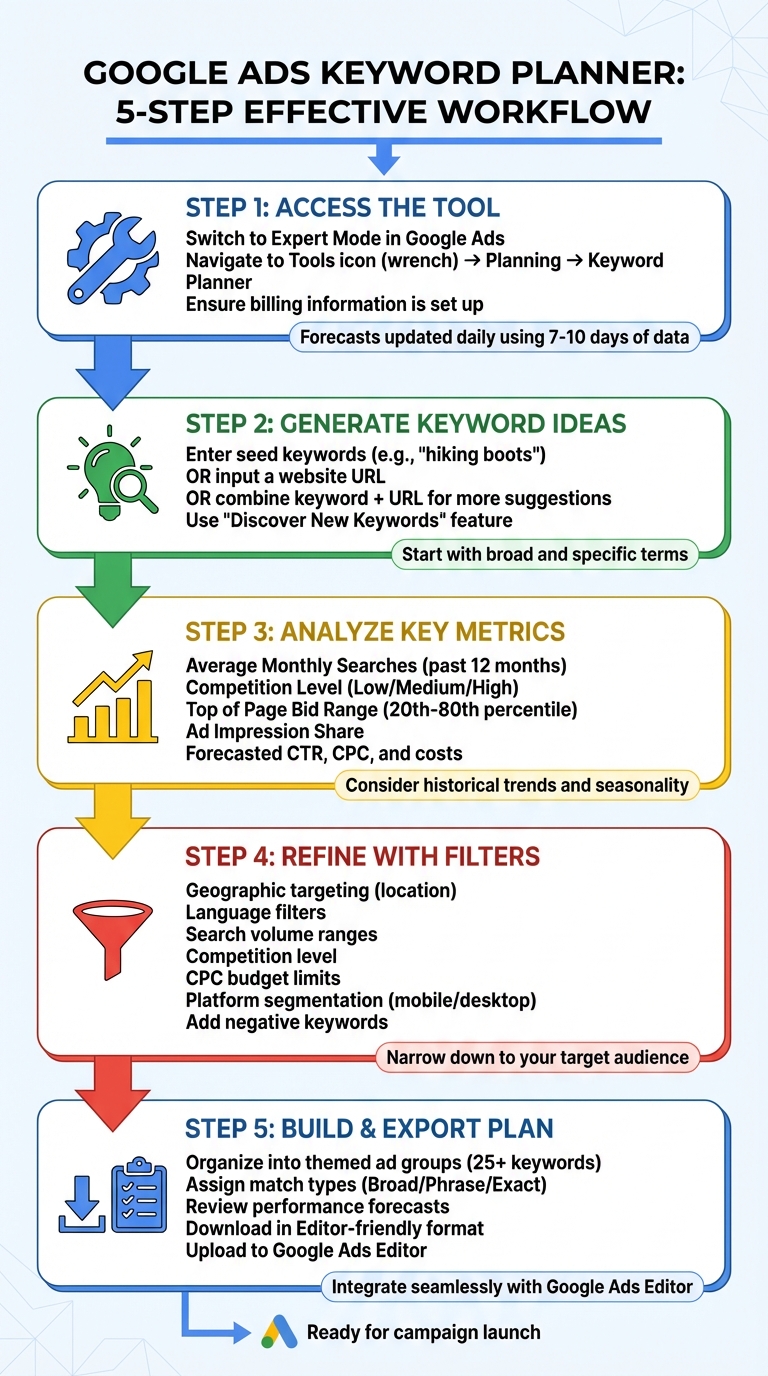
How to Use Google Ads Keyword Planner: 5-Step Process
- Free to use forever. You do not have to spend any money on Google Ads to use the Keyword Planner. You do have to enter billing information and complete account setup, but you can pause any campaign you create and never get charged.
- Data comes directly from Google. Search volume, competition, and bid data are pulled from real Google search activity. Third-party tools approximate this. The Keyword Planner does not.
- Works for both PPC and SEO. The keyword ideas and search volume data are useful for any SEO content strategy, not just for paid campaigns. Most of my SEO keyword research starts inside the Keyword Planner.
- Volume data shows in ranges for accounts without spend. If you do not have an active campaign with consistent ad spend, monthly search volumes are shown as ranges (like 100-1,000) instead of exact numbers. Once you are spending, the data tightens up significantly.
Question to Answer:
Are you using the Keyword Planner for both your Google Ads and SEO research, or are you paying for a third-party tool that pulls less accurate data?
2Watch the Full Walkthrough on YouTube
I recorded a full 2026 walkthrough of the Google Keyword Planner showing exactly how to use it from start to finish, including the interface, the two core features, how to filter your keyword list, and how to download your plan to upload into Google Ads Editor. If you want to see it in action, the video below covers everything.
Question to Answer:
Have you watched the full walkthrough so you can follow along inside your own Google Ads account?
3How to Access the Keyword Planner
Accessing the Keyword Planner is straightforward once your Google Ads account is set up correctly. The two things that trip people up are Smart Mode versus Expert Mode and the billing information requirement. Without Expert Mode and a payment method on file, you will not see the tool at all.
- Sign up or sign in to Google Ads. Go to ads.google.com and either log in or create a new account using your existing Google account.
- Switch to Expert Mode. If your account is in Smart Mode, you will not see the Keyword Planner. Click "Switch to Expert Mode" during sign-up, or find the option in your account settings if you are already inside. Expert Mode unlocks every Google Ads feature, including this one.
- Complete your account setup with billing information. You have to enter a valid payment method to access the Keyword Planner. You do not have to spend anything. You can create an account without launching a campaign, or pause any campaign you do create.
- Open the Tools menu. Click the Tools icon in your account, which looks like a wrench in most account layouts.
- Navigate to Planning, then Keyword Planner. Under the Tools menu, expand the Planning section and click Keyword Planner. That takes you to the main screen with the two core features.
If you do not see the Keyword Planner under Planning, the most common reason is that your account is still in Smart Mode or your billing information is incomplete. Fix those two things and the tool will appear.
Question to Answer:
Is your Google Ads account in Expert Mode with a valid payment method on file so you actually have access to the Keyword Planner?
4The Two Core Features
Inside the Keyword Planner you will see two main options. Most of your keyword research will happen inside the first one, but both are useful at different stages of your planning.
- Discover New Keywords. This is where you start. Enter a few seed keywords (like "running shoes" or "PT clinic Charlotte"), a competitor URL, or both at the same time. Google returns a list of related keyword ideas with their search volume, competition level, and bid ranges. The "Start with a website" option scans a URL for keywords associated with that page, which is the foundation of any competitor research workflow.
- Get Search Volume and Forecasts. This is where you go once you already have a list of keywords. Paste your keywords in, and the tool gives you historical search volume plus a forecast of clicks, impressions, cost, and CTR for a campaign targeting those keywords. Forecasts update daily based on the last 7-10 days of data, adjusted for seasonality.
"Keyword Planner's forecasts are refreshed daily and based on the last 7-10 days, adjusted for seasonality." - Google Ads Help
One thing worth knowing is that historical search volume in the Keyword Planner is based on exact match data, but you can adjust forecasts to model broad match, phrase match, or exact match traffic. Pick the match type that reflects what you actually plan to run in your campaign.
Question to Answer:
Are you using both features together, or are you stopping after generating keyword ideas without ever forecasting what a campaign would actually look like?
5How to Generate Keyword Ideas
There are three reliable ways to generate keyword ideas in the Keyword Planner. Most of the time you will use a combination of all three.
- Start with seed keywords. Enter 1-5 simple keywords that describe your product or service. "Hiking boots" or "wedding venue" or "dental implants Charlotte." Google fills in related ideas you would not have thought of on your own.
- Start with a website URL. Enter your own URL or a top-level domain (the homepage). Google scans the page and pulls every keyword it associates with that content. This is the fastest way to find what Google already thinks your business is about.
- Combine both at once. Enter seed keywords plus a URL in the same search. This almost always returns a wider and more relevant keyword list than either approach alone. This is my default starting point for most projects.
The trick is to pick seed keywords that are specific enough to be relevant but broad enough to return useful ideas. "Wedding" alone is too broad. "Wedding venues for small weddings in downtown Asheville with parking" is too narrow. "Wedding venues" or "wedding venues Asheville" is the sweet spot.
For competitor research, I take 5-10 competitor URLs, enter each one separately into the Keyword Planner, and pull the unique keyword ideas each one generates. Some of the most valuable keywords for any business are the ones you would never have thought of yourself but that competitors are already ranking for. The Keyword Planner surfaces those quickly.
Question to Answer:
Are you running competitor URLs through the Keyword Planner to find keyword ideas you would not have come up with on your own?
6The Metrics That Actually Matter
Once you have a keyword list, the Keyword Planner shows several columns of data for each keyword. Most of them are useful. A few are not. Here is what to actually pay attention to.
| Metric | What It Means | How to Use It |
|---|---|---|
| Avg. Monthly Searches | How often the keyword was searched on Google over the past 12 months. | Prioritize keywords with enough volume to matter for your business. |
| Competition | Low, Medium, or High. Reflects how many advertisers are bidding on it. | High competition usually means high commercial intent. Do not avoid it on that alone. |
| Top of Page Bid (Low) | What advertisers in the 20th percentile pay to show at the top of search results. | Use as your minimum bid expectation for the keyword. |
| Top of Page Bid (High) | What advertisers in the 80th percentile pay to show at the top of search results. | Use as your realistic maximum CPC for budgeting and planning. |
| Ad Impression Share | How often your ads appeared compared to total available searches. | Useful for existing campaigns. A low share means there is room to capture more traffic. |
The Top of Page Bid columns are the most underused metrics in the entire tool. A keyword with a $20 high-end bid range is telling you that advertisers are paying that much because the keyword converts. That signals commercial value. If I see a keyword like "PPC advertising agency" with a $10+ CPC range, that is a high-value keyword worth pursuing in both SEO and paid search.
Do not chase low-competition keywords just because they look easy. A low-competition keyword usually means nobody is bidding on it because nobody converts off it. Commercial intent matters more than competition level.
Question to Answer:
Are you using the top of page bid range to identify high-commercial-intent keywords, or are you only looking at search volume and competition level?
7Using Filters to Narrow Your List
A raw keyword list from the Keyword Planner can return hundreds or thousands of ideas. The "Refine keywords" panel on the right side of the screen is where you cut that down to a usable list. Use it aggressively.
- Geographic targeting. Set your target locations at the top of the screen. For a local business in Charlotte, set the location to Charlotte plus surrounding areas. For a national business, set it to the United States. This pulls search volume specific to your actual market.
- Language filter. Set the language to match your audience. Most US businesses set this to English.
- Average monthly searches filter. Filter out keywords below a minimum volume (like 50 or 100 searches per month) to remove noise. Filter out keywords above a maximum if you want to focus on long-tail terms with less competition.
- Top of page bid filter. If you have a tight CPC budget, filter for keywords with a low end bid under your target maximum. If you want only high-intent commercial keywords, filter for keywords with a high end bid above a certain threshold.
- Refine by attribute. The right-side panel shows attributes Google has detected in your keyword list (brand names, colors, product types, etc.). Uncheck anything that does not apply to your business. If you sell black running shoes only, uncheck the "Red" and "Blue" attributes.
- Date range selector. Use this to find seasonal opportunities. Analyzing February data for a Valentine's Day campaign, or November data for Black Friday, surfaces keywords that spike during those windows.
The goal of filtering is to get your list down to 25-100 highly relevant keywords that you can group into themed ad groups. A 500-keyword list is not useful. A 50-keyword list organized into 4-6 themed groups is the foundation of a real campaign.
Question to Answer:
Are you filtering your keyword list down to a focused 25-100 keywords, or are you trying to work from an unfiltered list with hundreds of low-relevance terms?
8Using AI With the Keyword Planner
The Keyword Planner is powerful on its own, but pairing it with an AI tool like Claude or ChatGPT is one of the highest-leverage workflows I have built in 2026. The AI does the analysis. The Keyword Planner provides the real Google data. Together they let you find keyword gaps your competitors are winning in under 30 minutes.
The workflow is simple. Generate keyword data from the Keyword Planner for your site and your competitors, download it as CSV files, and let AI do the comparison.
- Pull keyword data for your own website. In the Keyword Planner, enter your website URL, generate the keyword list, and download it as a CSV.
- Identify 2-3 top organic competitors. Tools like SpyFu (free plan works) help find your top organic competitors quickly. Pick the businesses that are closest to what you do.
- Pull keyword data for each competitor. Run the same Keyword Planner process for each competitor URL and download each one as a CSV.
- Upload all four CSVs into Claude or ChatGPT. Use a prompt like: "Here is my website and here are two competitors. Help me find keyword gaps they are ranking for that I am not. Include search volume and bid data, and group the gaps into 5-7 topic categories."
- Act on the gaps. The AI returns a list of keyword gaps grouped by topic. Wherever a competitor is getting significant search volume for a topic you have barely covered, that is your signal to start building content, pages, or campaigns around that topic.
What makes this workflow useful is not just the keyword list. It is the categorization. Handing a client 300 random keywords is overwhelming. Handing them five or six clear topic areas where competitors are outranking them gives a clear roadmap of where to focus first.
This approach works for SEO content planning. It also works directly for PPC keyword research. Wherever your competitors are running ads against keywords you are not bidding on, that is a paid search opportunity worth testing.
Question to Answer:
Have you combined Keyword Planner data with an AI tool to find the keyword gaps where your competitors are getting traffic you are missing?
9Reviewing Forecasts Before You Spend
Once you have a refined keyword list, the second core feature of the Keyword Planner becomes the most useful. Paste your final keyword list into "Get Search Volume and Forecasts" and you get a daily forecast of clicks, impressions, cost, CTR, and average CPC for a campaign targeting those keywords.
| Forecast Metric | What It Tells You |
|---|---|
| Clicks | Estimated daily ad clicks at your bid and budget settings. |
| Impressions | Estimated daily ad appearances on search results. |
| Cost | Predicted average daily spend for the keyword set. |
| CTR | Predicted click-through rate based on competition and ad rank. |
| Avg. CPC | Expected average cost per click across the keyword list. |
The forecast lets you do two things you cannot do anywhere else for free. First, you can model different daily budgets and bid strategies before you ever launch a campaign. Drag the budget slider up and see how clicks scale. Second, you can segment forecasts by device and location to see where your traffic is actually going to come from.
The forecasts update daily and use the last 7-10 days of search data adjusted for seasonality, so they are reasonably accurate. Just keep in mind that historical volume in the Keyword Planner is based on exact match, while forecasts can be modeled across broad, phrase, or exact match. Match what you set in the forecast tool to what you actually plan to run in your campaign.
Question to Answer:
Are you running forecasts on your final keyword list before launching, so you have a realistic budget expectation instead of guessing?
10Turning Your Keyword Plan Into a Real Campaign
The whole point of using the Keyword Planner is to build campaigns that actually drive results. Once your keyword research is done, the implementation steps determine whether all that research turns into leads or gets wasted on bad campaign structure.
- Download your plan in "Editor-friendly format." From the Keyword Planner, export your finalized keyword list in the editor-friendly format. This file imports directly into Google Ads Editor, which is much faster than building campaigns manually inside the web interface.
- Group keywords into tightly themed ad groups. Do not lump all your keywords into one ad group. Create separate ad groups for "trail running shoes," "track spikes," and "racing flats" rather than one giant "running shoes" group. Tight themes give you tighter ads and better quality scores.
- Use phrase match and exact match, not broad match. Broad match without strong audience signals and smart bidding will burn through your budget on irrelevant search terms. Start with phrase and exact match keywords and expand only after you have data.
- Build a strong negative keyword list from day one. Use the "Refine keywords" panel in the Keyword Planner to identify irrelevant categories. If you sell eyeglasses but not wine glasses, add "wine" as a negative. Add competitor brand names, "free," "cheap," and "jobs" as negatives if those terms do not align with your goals.
- Avoid keyword overlap across campaigns. Do not target the same or closely related keywords in multiple campaigns. They will compete against each other in the auction and inflate your costs.
- Stick to 2-3 word phrases. Single-word keywords are almost always too broad. Long-tail keywords with 5+ words usually do not have enough search volume to matter. Two- and three-word phrases are the sweet spot for most campaigns.
Once campaigns are running, the work shifts to the Search Terms Report inside Google Ads, which shows the actual search queries that triggered your ads. The Keyword Planner gets you to launch. The Search Terms Report is what keeps the campaign efficient after launch.
Question to Answer:
Are you turning your Keyword Planner research into tightly themed ad groups with a strong negative keyword list, or are you launching campaigns with broad match keywords and no negatives?
11Final Thoughts
In Summary
The Google Keyword Planner is the most important free keyword research tool available, and it should be the first place you go for any Google Ads or SEO project. The data comes straight from Google, the forecasts update daily with seasonality, and you can use it without ever spending a dollar on ads as long as your account is in Expert Mode with billing information on file.
The most underused parts of the tool are the top of page bid columns and the filter panel. The bid ranges tell you which keywords have real commercial value, not just search volume. The filters cut your keyword list down to a focused, usable size that you can actually build a campaign around. Use both aggressively and your output gets significantly better.
The biggest workflow shift in 2026 is pairing the Keyword Planner with AI. Download keyword data for your site and your top competitors, upload the CSV files into Claude or ChatGPT, and ask for keyword gaps grouped into topic categories. What used to take hours of manual comparison now takes 30 minutes and gives you a cleaner, more actionable list than either tool produces on its own.
The research is only useful if you implement it correctly. Download your final plan in the editor-friendly format, group keywords into tightly themed ad groups, use phrase and exact match rather than broad, and build a strong negative keyword list before you launch. That structure is what turns keyword research into real leads and sales, not just a list of search volumes.
0 comments