

Google Ads is a pay-per-click advertising platform that helps businesses reach customers actively searching for their products or services. Here’s a quick breakdown of what you’ll learn:
- How Google Ads Works: Ads are displayed based on factors like bids, ad quality, and relevance. Quality Scores (1-10) affect costs and placement.
- Why Use Google Ads: Businesses earn $8 for every $1 spent on average. You control your budget, track performance, and target users with clear intent.
- Getting Started: Create an account, set up billing, and switch to Expert Mode for advanced features.
- Keyword Research: Use tools like Google Keyword Planner to find relevant keywords and manage costs effectively.
- Campaign Setup: Choose campaign types, set budgets, and write ads that align with user intent.
- Performance Tracking: Monitor metrics like CTR, CPC, and Quality Score. Use conversion tracking to measure success.
Google Ads is a powerful tool for businesses of all sizes, offering measurable results and flexibility. Ready to dive in? Let’s explore the details.
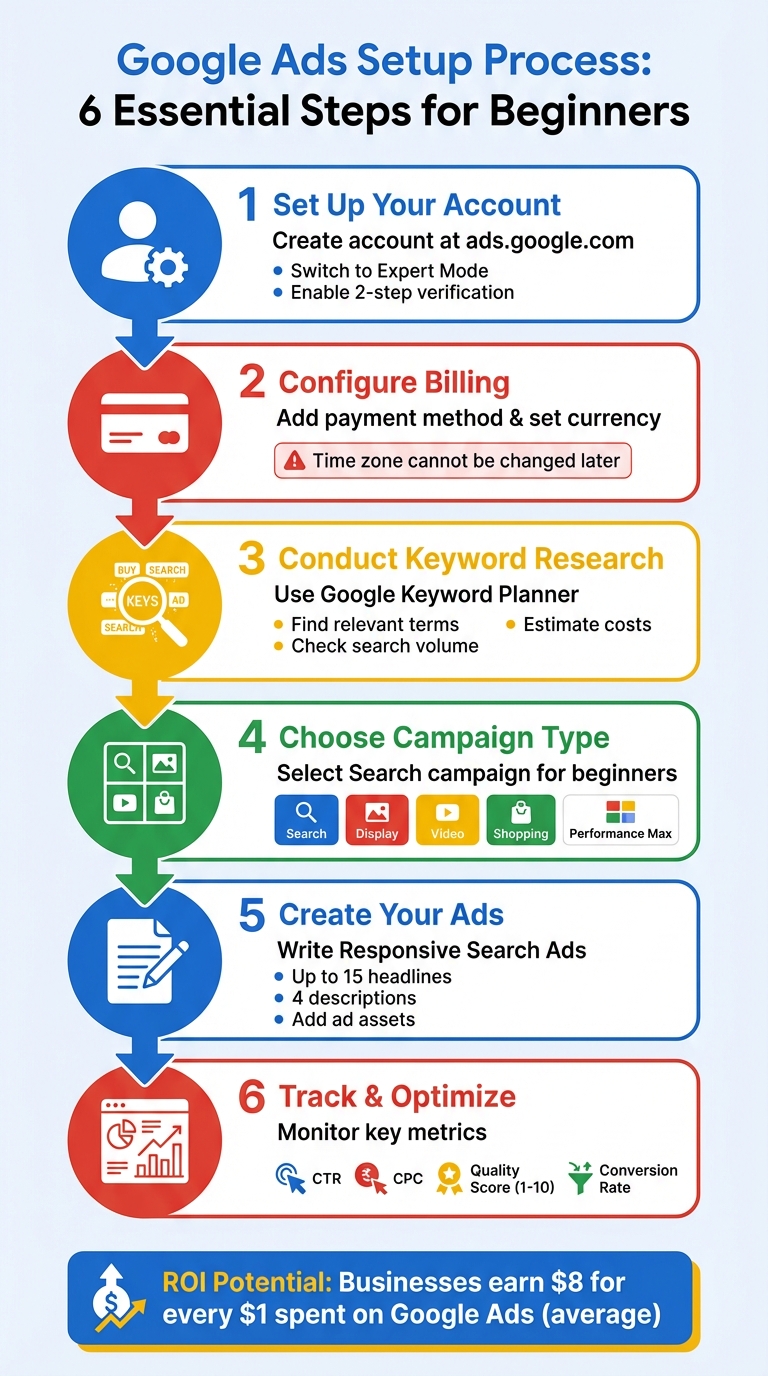
Google Ads Setup Process: 6 Essential Steps for Beginners
Setting Up Your Google Ads Account
Create a Google Ads Account
Starting with Google Ads is simple. Head over to ads.google.com and click either "Start Now" or "Sign Up." You'll need a Google Account (Gmail) to proceed - don’t worry if you don’t have one; you can create it on the spot.
Once logged in, you'll be prompted to enter your business name and website URL. This information helps Google customize the setup process and pre-fill some campaign details. If you have a Business Profile or YouTube channel, linking them at this stage can streamline recommendations for your campaigns.
By default, Google may place you in "Smart Mode," which simplifies the process but limits your control over advanced features like bidding, targeting, and ad formats. If you want more flexibility, scroll down and click "Switch to Expert Mode." Alternatively, you can choose "Create an account without a campaign" to set up your account and billing details without diving into ads right away.
"We recommend you create your account before creating a campaign. While creating your account, you can skip all recommendations to create a campaign." - Google Ads Support
For added security, enable 2-step verification and include a recovery phone number and email. Once the account setup is complete, you can move on to configuring your billing details.
Set Up Billing Information
After creating your account, the next step is to set up your billing information. Start by selecting your billing country, which determines your payment options and currency. For example, if you choose United States, your currency will automatically be set to USD ($). Be mindful when selecting your time zone, as it impacts reporting, billing cycles, and statistics - and it cannot be changed later.
Next, you’ll create a payment profile by selecting an account type: either "Organization" (default) or "Individual." This choice is important for tax purposes, so pick the one that aligns with your situation. Then, provide your organization or legal name and a valid billing address.
Add a payment method such as a credit/debit card, PayPal, or a bank account. Keep in mind that Google may place a temporary authorization hold on your payment method, which usually clears within a week. If you have a promotional code or introductory offer, enter it in the "Introductory offer" field and click "Apply."
| Setting | Can it be changed? |
|---|---|
| Time Zone | No |
| Billing Country | No (requires new account) |
| Account Type | Yes (in some regions) |
| Currency | No |
sbb-itb-d8a1e45
Google Ads For Beginners (2025 Complete Guide)
Conducting Keyword Research
Keyword research is a crucial part of running a successful Google Ads campaign. It’s all about pinpointing the exact words and phrases potential customers use when searching for products or services like yours. Without the right keywords, your ads might miss the mark, failing to connect with people actively looking for what you offer.
The keywords you choose determine whether your ad even gets a chance to appear. For instance, if you sell hiking boots but only target a broad term like "shoes", you’re likely to miss people searching for more specific terms such as "waterproof hiking boots" or "trail footwear." By focusing on relevant, specific keywords, you increase the likelihood of reaching customers ready to make a purchase.
Keyword research isn’t just about visibility - it helps you manage costs effectively too. Tools like Google Keyword Planner provide insights into search volume and estimated bid ranges for each term, helping you allocate your budget wisely. This way, you avoid spending on keywords that are either too competitive or irrelevant. Additionally, grouping keywords into logical categories ensures your ads stay on point. For example, someone searching for "running shoes" should see an ad tailored to running shoes, not a generic footwear ad. Using keyword tools to refine your list can make all the difference.
Using Google Keyword Planner
Google Keyword Planner, built into your Google Ads account, is an essential tool for discovering keyword opportunities and estimating their performance. To access it, navigate to the "Tools" section in your account, select "Planning", and choose "Keyword Planner." For full functionality, switch to Expert Mode.
"Keyword Planner helps you research keywords for your Search campaigns. You can use this free tool to discover new keywords related to your business and see estimates of the searches they receive and the cost to target them." - Google Ads Help
You can start your research in two ways: by entering relevant words or phrases related to your business, or by pasting your website URL to generate keyword suggestions based on your site’s content. For example, if you own a bakery, you might input terms like "custom cakes" or "gluten-free pastries." The tool will then provide a list of related keywords, complete with data on average monthly searches, competition levels (low, medium, or high), and estimated bid costs.
To fine-tune your list, use the "Refine keywords" panel to filter results by brand, category, or other attributes. Adding negative keywords - terms you don’t want triggering your ads - is another smart move. For instance, if your bakery focuses on premium offerings, you might exclude terms like "cheap" or "free" to avoid clicks from low-intent users. The tool can also organize keywords into suggested ad groups, saving you time during campaign setup.
Once you have a solid keyword list, the next step is deciding on match types to balance reach and precision.
Choosing Keyword Match Types
Keyword match types determine how closely a search query must align with your chosen keywords to trigger your ads. Google Ads offers three main options: Broad Match, Phrase Match, and Exact Match. Each comes with its own trade-offs between reach and control.
Broad Match is the default setting and casts the widest net. Your ad can show for searches related to your keyword, including synonyms and related terms, even if the exact keyword isn’t used. For example, a broad match on "running shoes" could trigger ads for "athletic footwear" or "jogging sneakers." This option is especially effective when paired with Smart Bidding, which adjusts bids in real time using AI.
Phrase Match (formatted as "keyword") strikes a balance between reach and precision. Ads appear for searches that include the meaning of your keyword, giving you more control than broad match while still allowing flexibility.
Exact Match (formatted as [keyword]) offers the most precision. Ads only show for searches that closely match the specific intent of your keyword, providing the highest level of control over who sees your ad.
| Match Type | Syntax | Reach | Control | Best For |
|---|---|---|---|---|
| Broad Match | keyword | Highest | Lowest | Expanding traffic with Smart Bidding |
| Phrase Match | "keyword" | Moderate | Moderate | Balancing reach and relevance |
| Exact Match | [keyword] | Lowest | Highest | Tight control over targeting |
If you’re working with a tight budget or need precise targeting, start with phrase or exact match. Over time, as you gather data and gain confidence, you can experiment with broad match combined with Smart Bidding to expand your reach. Regularly reviewing your search terms report will help you weed out irrelevant queries, keeping your campaign focused on attracting high-quality traffic.
Creating Your First Campaign
Once your keyword research is done, it’s time to dive into building your first campaign. This involves selecting a campaign type, fine-tuning settings to control when and where your ads appear, and writing attention-grabbing ad copy. Thankfully, Google Ads offers a guided setup that makes the process easier for beginners.
Choose Your Campaign Type
The type of campaign you choose determines where your ads will show up and how they operate. For those just starting out, Search campaigns are a great option. These campaigns feature text ads that appear in Google search results when users are actively searching for something you offer. For instance, if someone searches for "organic dog food delivery", your ad can pop up right when their interest is at its peak. This makes Search campaigns ideal for generating sales, leads, or website visits.
Other campaign types include:
- Display: Image-based ads that appear across websites and apps.
- Video: Ads that play on YouTube.
- Shopping: Product listings tailored for retailers.
- Performance Max: AI-powered campaigns that run across all Google channels, optimizing your budget and bids in real time.
While Performance Max is powerful, sticking with Search campaigns is typically better for beginners. It allows you to stay in control and focus on learning the basics.
As you set up your campaign, Google Ads will ask you to pick a marketing objective, like Sales, Leads, or Website Traffic. Choose the one that matches your goal, and the platform will suggest the most suitable campaign types. After that, you’ll configure your campaign settings to target the right audience.
Configure Campaign Settings
Your campaign settings are crucial for ensuring your ads reach the right people. Once you’ve chosen a Search campaign, you’ll need to adjust several settings to control how your ads run.
Start with location targeting, which helps you focus your budget on specific geographic areas. You can target entire countries, specific cities, or even a set radius around your business. For example, if you own a bakery in Austin, Texas, you might target a 10-mile radius to attract local customers.
Next, adjust language targeting to match the languages your audience speaks. For most U.S. businesses, English will be the default. But if you also serve Spanish-speaking communities, adding Spanish ensures your ads reach those users too.
Ad scheduling lets you decide when your ads will run. If your business operates Monday through Friday from 7:00 AM to 4:00 PM, you can set your ads to display during those hours.
Your daily budget is the average amount you’re willing to spend each day. There’s no minimum requirement, so many beginners start with $10 to $50 per day to test the waters. Pair your budget with a bidding strategy like "Maximize clicks" to drive traffic or "Maximize conversions" if you’ve set up conversion tracking. Google’s automated bidding will then work within your budget to deliver the best possible results.
With these settings in place, you’re ready to focus on writing ads that get clicks.
Write Your Ads
To create ads, you’ll use Responsive Search Ads (RSAs), which are now the standard format. RSAs allow you to input up to 15 headlines and 4 descriptions. Google’s AI will then test different combinations to find the ones that perform best. This means you don’t have to guess which single version will work - you can test multiple ideas at once.
For your headlines, include relevant keywords to boost visibility. Provide several variations so Google can optimize performance. For instance, a headline like "Waterproof Hiking Boots – Free Shipping" speaks directly to a user’s search intent.
In your descriptions, expand on your headlines by emphasizing benefits, offers, or clear calls to action. Details like "Shop 100+ Styles" or "30-Day Returns" can help build trust and encourage clicks. Make sure your ad copy matches your landing page. If your ad promises a discount, the landing page should highlight that offer prominently.
Finally, add ad assets (previously called extensions) to make your ads more informative and appealing. These can include sitelinks, phone numbers, or location details. For example, sitelinks can direct users to specific pages like "Men’s Boots" or "Women’s Boots", helping them find what they need faster. These extras can increase click-through rates by making your ads stand out.
Tracking and Optimizing Campaign Performance
Once your ads are live, the next step is understanding how they perform. Without tracking, you’re essentially flying blind - unsure which ads are driving results and which keywords are draining your budget.
Set Up Conversion Tracking
In Google Ads, conversions are actions like purchases, sign-ups, or phone calls that reflect campaign success.
To track these, you’ll need to install the Google tag on every page of your website. This snippet of code goes into the <head> section of your HTML and uses cookies to monitor user activity. Then, add an event snippet to specific pages where conversions occur, such as a "Thank You" page after a purchase.
If you’re using Google Tag Manager, you can simplify the process by deploying tags through its web interface, avoiding direct edits to your site’s code. Make sure to include a Conversion Linker tag set to fire on "All Pages" to ensure proper tracking across browsers. Use the Google Tag Assistant tool to verify that your tags are firing correctly. Keep in mind, it may take up to 48 hours for conversion data to appear in your Google Ads dashboard after setup.
To improve accuracy, enable auto-tagging in your Google Ads settings. This feature tracks Google click identifiers (GCLIDs), which are essential for proper conversion attribution. By default, conversions are tracked within a 30-day window - meaning any action taken within 30 days of a click will be counted.
Once tracking is set up, shift your focus to monitoring key metrics that measure your campaign's effectiveness.
Monitor Key Metrics
Several metrics will help you assess how well your ads are performing:
- Conversion Rate (CVR): This measures how effectively your landing pages turn clicks into actions.
- Click-Through Rate (CTR): Indicates how engaging your ad is by showing the percentage of viewers who click it. A CTR below 1% on the Search Network often signals that your keywords or ad copy need improvement.
- Cost-Per-Click (CPC): Tracks the average amount you’re spending per click, helping you manage your budget.
- Quality Score: Rated from 1 to 10, this metric evaluates the quality of your keywords, ads, and landing pages. Higher scores can lead to lower costs and better ad placements.
All these metrics are available in your Google Ads dashboard. For deeper insights, use the Search Terms Report to review the actual phrases people search before clicking your ad. This can help you identify high-performing keywords or flag irrelevant ones to block with negative keywords. You can also segment data by device, location, or time of day to uncover specific trends. For instance, if mobile users show higher engagement, consider increasing your bids for mobile traffic.
Regularly monitoring these metrics sets the stage for making informed adjustments.
Make Basic Optimizations
Let the data guide your decisions on bid adjustments and keyword strategies. For example:
- If a keyword has a low CPC but a high conversion rate, increase your bid to capture more traffic.
- If a keyword has a high CPC but isn’t converting, lower your bid or pause it to reallocate budget to better-performing terms.
| Optimization Scenario | Recommended Action |
|---|---|
| Low CPC + High Conversion Rate | Increase Max. CPC bid |
| High CPC + Low Conversion Rate | Reduce Max. CPC bid |
| Search CTR < 1% | Refine keywords or rewrite ad copy |
| Irrelevant search traffic | Add as Negative Keywords |
The Recommendations page in Google Ads is another valuable tool, providing tailored suggestions to improve your bids and Ad Rank. Make incremental changes and monitor their impact before adjusting further. Over time, these optimizations will help you maximize your return on investment and stretch your ad budget further.
Next Steps
You’ve now got a solid grasp of Google Ads basics - from setting up your account and conducting keyword research to launching campaigns and tracking performance. But to truly excel, you’ll need to keep learning and fine-tuning your approach.
Recap of Key Steps
Start by setting clear goals for each campaign. Whether you’re aiming to drive sales, generate leads, or build brand awareness, having defined objectives is essential. Use tools like GA4 and Enhanced Conversions to ensure accurate tracking. Keep your account structured logically - organize campaigns around your business goals and group ad sets by tightly related keyword themes for better relevance.
When it comes to keywords, prioritize user intent rather than sticking to exact matches. Pair phrase and broad match keywords with Smart Bidding to let Google’s algorithms identify the right audience for you. For ad creation, leverage Responsive Search Ads with multiple headlines and descriptions that highlight benefits and include clear calls-to-action. Also, make sure your landing pages align with your ad messaging, load quickly (under two seconds), and are mobile-friendly.
Give your campaigns 60 to 90 days to optimize before making significant changes. Frequent tweaks can disrupt Google’s machine learning process. During this time, continue refining keywords and adjusting bids as needed. Isaac Rudansky from Adventure PPC explains:
“The platform now operates on three foundational pillars: automated bidding strategies that adjust bids in real-time based on conversion likelihood, broad match keywords enhanced by semantic understanding that can match user intent beyond exact phrases, and privacy-first tracking that relies on modeled conversions rather than cookie-based attribution”.
By following these steps, you’ll set the stage for long-term success. But there’s always more to learn.
Additional Resources
To deepen your expertise, take advantage of these resources:
- Google Skillshop: Access free training and certifications directly from Google.
- Google Ads Help Center: Find detailed guides and troubleshooting tips for all campaign types.
- Performance Planner: Experiment with budget scenarios to see how they affect your campaign outcomes. Integrate GA4 to gain deeper insights into user behavior.
For a more advanced dive, consider Surfside PPC’s Google Ads Course, which covers topics like Enhanced Conversions, automated bidding strategies, and advanced campaign optimization. With Google Ads now reaching 93% of online consumers across web and app channels, mastering these tools can significantly boost your ROI - Google AI has been shown to increase campaign ROI by 21% when used effectively. Staying up to date with these strategies will give you a competitive edge in today’s fast-evolving digital landscape.
FAQs
How much should I spend per day to start with Google Ads?
When setting your daily ad budget, a practical approach is aiming for 10–20 clicks per day. To calculate this, simply multiply your average cost-per-click (CPC) by 10–20. For instance, if your CPC is $1, a daily budget of $10–$20 would be a reasonable starting point.
If you prefer to use industry benchmarks, here’s a quick guide:
- Low-CPC industries: $20–$40 per day
- Mid-range industries: $40–$120 per day
- Competitive markets: $150+ per day
Ultimately, adjust your budget based on your specific goals and actual CPC to make the most of your ad spend.
What’s the best keyword match type for beginners?
The best keyword match type for beginners is broad match because it’s the default option and offers the most flexibility. This type allows your ads to show up for a wide variety of related searches, making it easier to understand how keywords function in practice. Broad match is a great starting point for collecting data and observing performance before narrowing down to more precise match types.
How can I check if my Google Ads conversions are tracking correctly?
To make sure your Google Ads conversions are being tracked accurately, start by double-checking your conversion tracking setup. Confirm that the Google tag is installed correctly and is capturing user actions as intended.
It's also a good idea to review your conversion data regularly. Look for any inconsistencies or unusual patterns in your reports, as these might signal tracking issues. If you spot any discrepancies, take the time to troubleshoot and resolve them.
By keeping a close eye on your conversion reports, you can maintain accurate tracking and gain valuable insights to fine-tune your campaigns for better results.
Related Blog Posts
0 comments